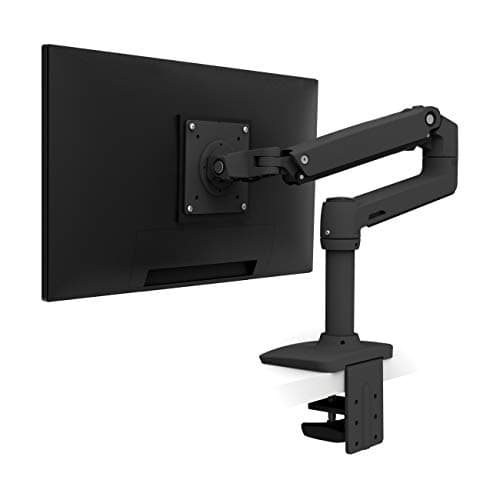
Buy an arm. A monitor arm gets the screen to the right height, lets you change that height when you switch between sitting and standing, clears the desk surface underneath it, and lets you push the screen back to a proper viewing distance. A fixed riser does one of those four things and then stops. The Ergotron LX is the one to buy if you are buying once — Ergotron rates it for screens up to 34 inches and 25 lb and backs it for ten years. The honest exception is at the bottom of this page, and it is about laptops rather than monitors.
What each one actually is
A monitor stand or riser is a platform. It raises the screen by a fixed amount — usually four to six inches — and usually creates a shelf you can push a keyboard under. No moving parts, nothing to adjust, nothing to fail.
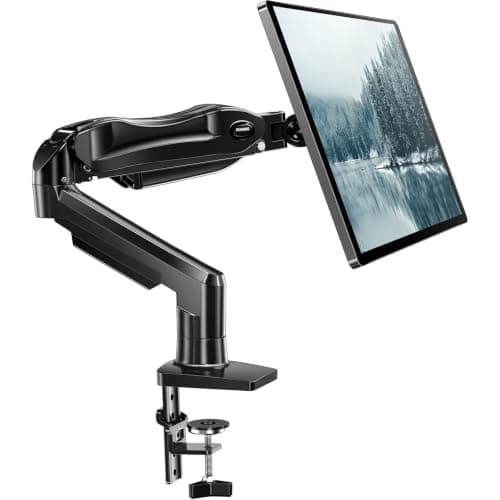
A monitor arm bolts to the desk with a clamp or a grommet and holds the screen on a counterbalanced joint. The screen moves up, down, forward, back, tilts and rotates, and the desk under it is empty. The counterbalance is either a gas spring or a mechanical constant-force spring, and both hold position without you tightening anything.
That difference sounds like a feature comparison. It is actually a question about how many heights you need, and the answer depends almost entirely on one thing: whether your desk moves.
Check 1: does your desk go up and down?
This is the check that settles it for most readers of this site, and it is why the question is worth a page at all.
At a fixed desk you need one correct screen height, and a riser that happens to be the right height delivers it. At a sit-stand deskyou need two, because the relationship between your eyes and the desk surface is not the same seated as standing. Most people's standing posture is slightly more upright and their eye line relative to the desk is a little higher, so a screen set perfectly for sitting is usually a touch low when you stand — and "a touch low" across four hours is how necks start complaining.
A fixed riser cannot serve both. You will pick the sitting height, because that is where you spend more time, and quietly accept a compromise standing. An arm moves in two seconds. If you own a sit-stand desk and a riser, you have bought half of your desk's value and then pinned the screen.
The underlying target is the same in both positions, and it is worth stating because it is the most commonly botched ergonomic number on a desk. OSHA's computer-workstation guidance and the American Optometric Association both put the screen slightly beloweye level rather than at or above it — the AOA frames it in terms of the eyes resting on a point a little below the top of the casing, at roughly arm's length. Cornell's guidance adds the part people miss: if you work reclined, the screen has to come up with you. A screen above eye level tips your head back, and that is the posture behind most of the complaints in standing desk neck pain.
Check 2: how much desk do you actually have?
A riser occupies the desk. Its footprint is permanent, the shelf under it is usable only for things the height of a keyboard, and the monitor cannot move backwards past the riser's rear edge.
That last point is the one people do not think about until the monitor arrives. Viewing distance matters as much as height — roughly an arm's length is the usual recommendation, more for a large panel — and a 27-inch monitor on a riser on a 24-inch-deep desk physically cannot sit far enough back. You end up too close to a big screen, which is its own kind of eye strain, and the riser is what is stopping you from fixing it. An arm clamps at the rear edge and cantilevers the screen out over the desk, so the screen's position and the desk's depth stop being the same problem. On a shallow desk that is the single strongest argument for an arm.
An arm also gives you the whole desk surface back. If your desk is small enough that this matters, it is probably also small enough that you have read our small standing desks page, and the two decisions pair.
Check 3: what does your monitor weigh, and does it have VESA holes?
An arm has two hard requirements, and failing either means a return rather than a compromise.
The VESA pattern. Your monitor needs four threaded mounting holes on its back in a standard square — 75 by 75 mm or 100 by 100 mm for the sizes this page is about. That pattern is a published VESA standard, which is why arms and monitors from different brands fit each other at all. Most monitors have it. Some consumer displays, particularly thin all-in-one designs and a number of Apple panels, do not, or need an adapter sold separately. Look at the back of the monitor, or its spec sheet, before you buy anything.
The weight rating.Every arm publishes a screen-size range and a weight limit, and the weight is the one that matters. Over-load a gas spring and it sags; under-load it and the screen drifts upward. Find your monitor's weight on the manufacturer's spec sheet — not the shipping weight, which includes the stand and the box — and buy an arm with real headroom.
| Arm | Published screen range | Published weight rating | Lift mechanism | Warranty |
|---|
| Ergotron LX | up to 34 in | 25 lb | Constant-force mechanical spring | 10 years |
| HUANUO single mount | 13-32 in | Not published as a figure | Gas spring | Not published |
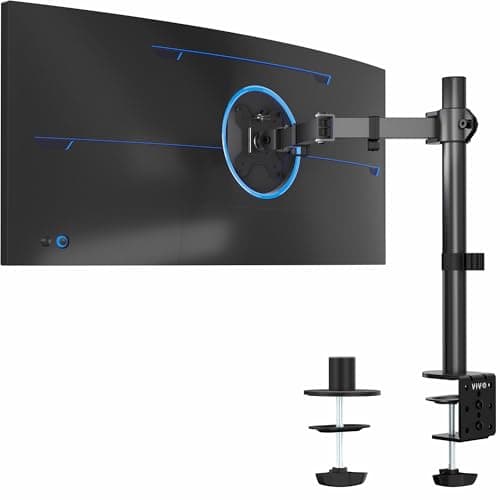
| VIVO single arm | 13-38 in | Not published as a figure | Height / tilt / swivel | Not published |
Read that table as a disclosure table. Ergotron publishes both halves of the specification and a ten-year term; the budget arms publish a size range and leave the load figure out, which is the normal state of this category and the reason the Ergotron is the arm we rank first. The VIVO earns its place on one number — it reaches to 38 inches, where most cheap arms stop at 32, which makes it the ultrawide answer at a budget price. The wider field is ranked in best monitor arms, and two screens is a different problem with its own page at best dual monitor arms.
One more check that costs nothing: your desk edge. A C-clamp needs an accessible rear edge without an obstruction behind it, and a grommet mount needs a hole. Desks with a full-width rear panel, a thick apron, a back-to-the-wall installation with no clearance, or a glass top are the cases where arms get awkward — and a glass desk, like the one we rank in our Eureka review, needs the manufacturer's blessing before you clamp anything to it.
When a stand is genuinely the right buy
Three cases, and we would rather name them than pretend the answer is always an arm.
Your monitor has no VESA pattern. Then the decision is made for you. An adapter exists for some panels; for the rest, a riser is the only way to raise the screen, and raising it still matters more than how you raised it.
You want the storage, not the ergonomics.A riser with a drawer or a shelf is genuinely useful on a cluttered desk, and "I want somewhere to slide the keyboard" is a real reason to buy one. Just be honest that you are buying desk organisation with a side of height, not an ergonomic fix.
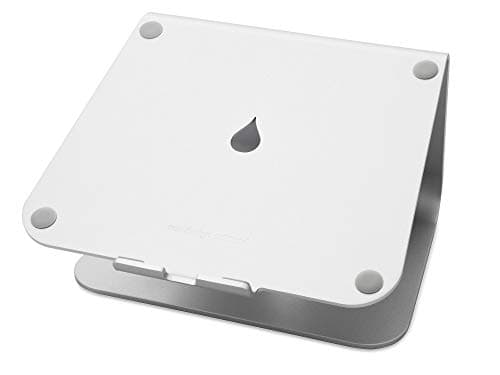
You are working on a laptop. This is the big one, and it is why there is a fixed stand ranked on this page. A laptop screen and keyboard are attached, so you cannot fix both at once — raise the screen to eye level and the keyboard goes with it, into your chest. The correct answer is a laptop riser plus an external keyboard and mouse, which separates the two and is cheaper than a monitor arm. The Rain Design mStand is here because it is one piece of cast aluminium with no hinge to sag, a fixed rise of about six inches, and nothing in it to off-gas — an inert object on a desk, which is rarer than it should be. The category is ranked properly in best laptop stands, and the posture argument is in dual monitor ergonomics.
What we do not rank is a fixed monitor riser, and that is deliberate rather than an oversight. For the price of a decent wood or steel riser you can buy a working articulating arm — the floor for a real gas-spring arm is close to the ceiling for a riser — and the arm does strictly more. If a riser is what you want, buy it on its storage and its looks, because those are the things it is actually better at.
What neither one fixes
Getting the screen up is the most cost-effective single change on most desks, and it is still only half of the setup. The other half is getting the keyboard down: elbows at roughly 90 degrees, forearms level, shoulders relaxed. Raise the screen and leave a too-high keyboard where it was and you have traded a neck problem for a wrist problem — which is the case for a keyboard tray or for simply lowering the desk, using the figure from our height calculator.
Nor does either one fix a chair that is wrong. The order of operations we recommend everywhere on this site is desk height, then the chair, then the screen — adding a $200 arm to a workstation whose chair has no lumbar adjustment is solving the third problem first. Mayo Clinic's office-ergonomics guide treats the whole workstation as one system for exactly this reason, and our office chair ranking is where to start if the chair is the weak link.
And one honest limit: neck pain that radiates down an arm, or comes with numbness, tingling or weakness, is not a monitor-height problem. AAOS lists those as reasons to see a clinician rather than to buy hardware, and no arm on this page changes that.
The verdict, in one paragraph
If your desk raises and lowers, buy an arm — the second height is the entire reason you bought the desk. If your desk is shallow, buy an arm, because pushing the screen back is the only way to get viewing distance you cannot otherwise find. If your monitor has no VESA holes, buy a riser, because raising the screen at all beats raising it elegantly. If you are on a laptop, buy a laptop riser and an external keyboard, which is the cheapest genuinely correct answer on this page. And if you want a drawer under your monitor, buy the riser and enjoy it — just do not believe it is doing more than it is.
Whichever you buy, the target position is the same, and it is specific: eyes level with a point two to three inches below the top of the casing, the center of the panel about 17 to 18 degrees below horizontal, the screen roughly an arm's length away. Those figures, and the order to set them in, are in how high should your monitor be.